Tablet Computers for the Elderly: A Professional's Guide
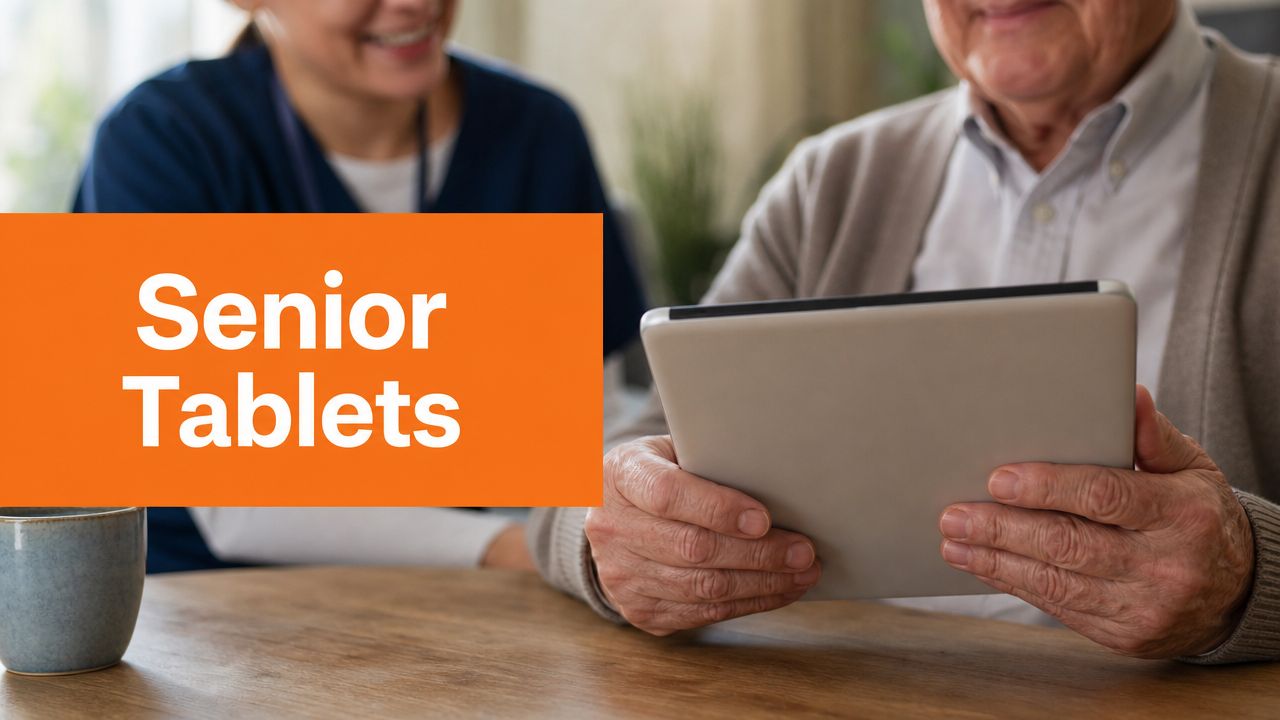
A care home buys a set of tablets with good intentions. Staff are told they'll help with resident engagement, family calls, and digital activities. Three months later, half the devices are in a drawer, one has a cracked screen, passwords are written on sticky notes, and nobody is sure which resident can safely use which app.
That outcome is common. It doesn't happen because tablets are a bad fit for older adults. It happens because facilities treat them like consumer gadgets instead of clinical tools.
Tablet computers for the elderly can support communication, structured cognitive work, telehealth, and day-to-day autonomy. But in a professional setting, success depends less on the brand of tablet and more on governance, setup, staff workflow, and resident safety. If those pieces are weak, the device becomes another burden for nurses, recreation teams, and family members.
Beyond Entertainment A Strategic Approach to Tablets in Senior Care
Many directors still encounter two competing views of tablets. One group sees them as entertainment devices for games, music, or video calls. The other expects them to solve engagement, cognitive support, and communication problems on their own. Neither view is practical.
A tablet programme works when the device has a defined job. In one unit, that may mean supervised cognitive activities and telehealth visits. In another, it may mean controlled family communication, simple reminders, and access to a resident-specific activity schedule. The point is operational clarity.
In Canada, tablet use among older adults stopped being niche a long time ago. The share of adults aged 65 to 74 using tablets to go online rose from 5% in 2012 to 17% in 2013, more than tripling in one year, according to this Canadian study on older adults and internet use. That shift matters because it established tablets as a practical platform for senior communication and engagement, not a novelty.
What fails in real facilities
The failed rollout usually follows a familiar pattern:
No ownership: Recreation thinks nursing owns the tablets. Nursing thinks IT owns them. IT thinks they're just end-user devices.
No resident matching: Residents with very different cognitive, visual, and motor needs all get the same setup.
No restriction: Open app stores, web browsers, and notifications create confusion and risk.
No workflow fit: Staff have to improvise every use case, which means the devices quickly stop being used.
Practical rule: If a tablet needs repeated explanation from staff every time it's picked up, the setup is wrong.
What works instead
A stronger model starts with a small number of approved use cases, clear device policies, and role-based access. Residents don't need every feature. Staff don't need another platform that requires workarounds. Directors need a deployment plan that can hold up during shift changes, weekends, and staff turnover.
For care leaders planning that kind of rollout, Orange Neurosciences for care homes and senior communities shows the sort of structured approach worth aiming for, where the tablet is part of a care workflow rather than a standalone purchase.
The Clinical Case for Tablets in Care Homes
The strongest case for tablets in care settings isn't entertainment. It's clinical utility. A well-managed tablet can support cognitive engagement, reduce friction in care delivery, and give residents more control over daily interactions.
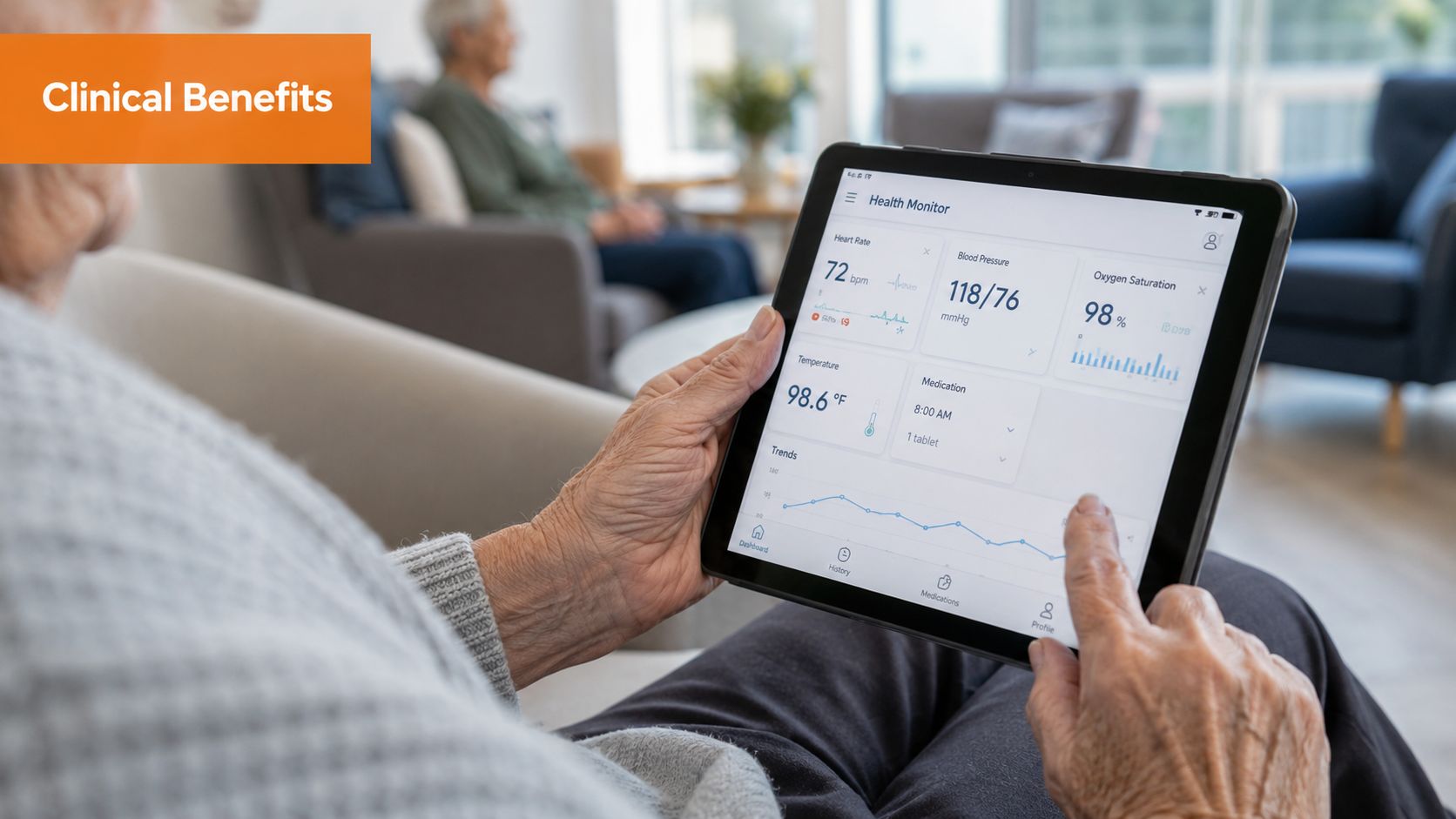
Facilities should also recognise that many older adults now come in with some familiarity already. A consumer technology guide reported that 59% of seniors own tablets, and it summarised a review of 28 studies showing that smartphones and tablets may improve executive function and processing speed in healthy older adults, with modest evidence for memory benefits. That makes tablets a practical platform for structured cognitive workflows, not just casual use, as noted in this senior technology review.
Cognitive engagement needs structure
Unstructured app use has limited clinical value. A resident tapping through random puzzle games may be occupied, but staff won't learn much from it, and the activity may not align with the person's care goals.
A better model is to use the tablet for targeted tasks tied to observation and follow-up. That includes baseline screening, repeated exercises, and documentation that clinicians can review. If your facility is building or refining that process, the geriatric assessment program guide is relevant because it reflects how digital tools can fit into an organised assessment pathway.
Social connection improves when it is curated
Video calls matter, but open-ended communication often breaks down in practice. Residents forget steps, incoming notifications interrupt sessions, and family members call at inconvenient times.
Facilities get better results when social use is scheduled and curated:
Family contact windows: Staff can support calls during known low-pressure times.
Interest-based sessions: Shared music, faith content, reminiscence prompts, and virtual events are easier to sustain than one-off app exploration.
Resident-specific shortcuts: One-tap access to approved contacts reduces frustration.
Tablets also reduce workflow friction
Clinical teams often overlook the operational benefit. A tablet can travel with the staff member or resident. That makes it useful for telehealth check-ins, reviewing digital care notes, showing visual prompts, and supporting bedside documentation in settings that have already digitised parts of their record workflow.
The biggest gain is often not speed. It's consistency. Staff are more likely to use a tool that is already charged, already signed in, and already configured for the resident in front of them.
Residents don't need a clever device. They need one that behaves predictably every time.
Autonomy and dignity matter
For some residents, a tablet becomes a simple control point. They can choose music, join a call, read familiar content, or respond to prompts without waiting for staff to mediate every step. That's especially valuable in environments where residents have lost control over many other parts of the day.
The practical warning is that autonomy only improves when the interface is clean. Too many icons, alerts, and choices do the opposite.
Selecting the Right Hardware and Software Features
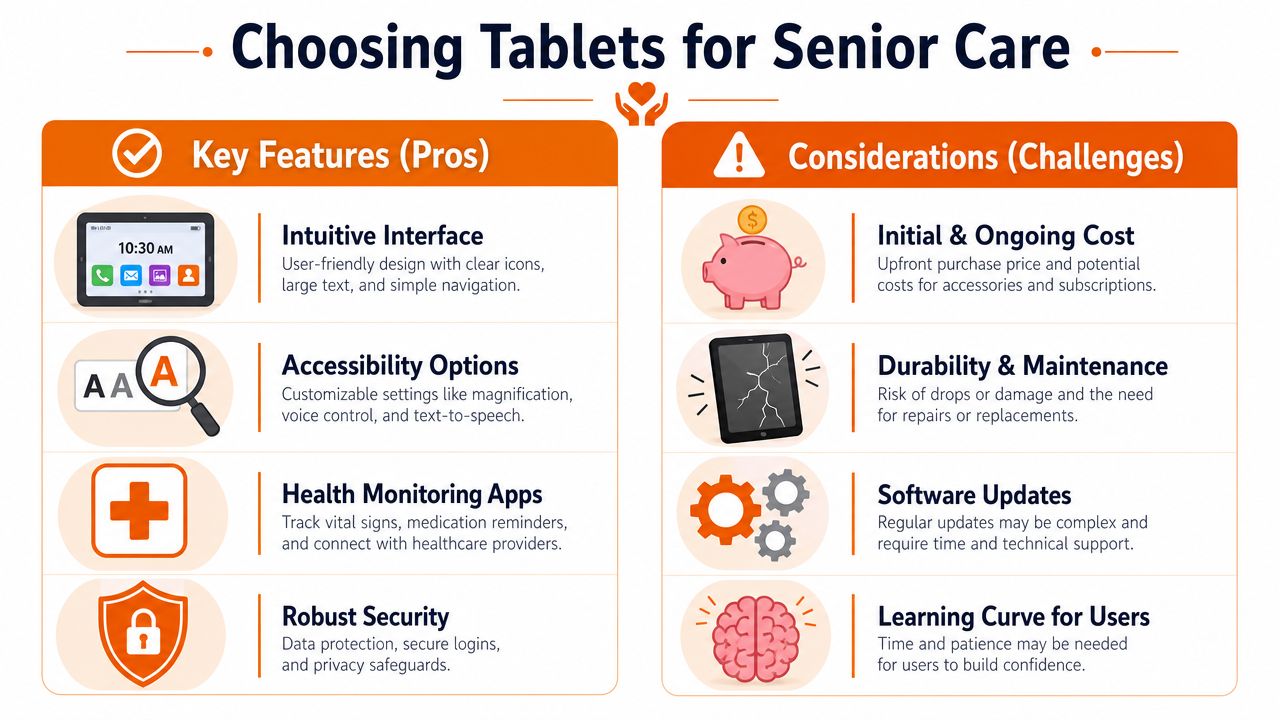
Buying tablets for a care home is not the same as buying tablets for staff gifts or family use. Consumer marketing focuses on speed, camera quality, and entertainment features. Clinical deployment should focus on visibility, durability, cleanability, manageability, and controlled access.
Start with the physical device
In practice, the most important hardware feature is often the screen. A larger display gives staff more room to simplify the layout and gives residents better visibility for text, images, and touch targets. Good speakers matter too. If staff keep handing residents headphones because the built-in audio is weak, the device becomes harder to use and harder to supervise.
Cases also matter more than many buyers expect. In senior care, the case isn't an accessory. It's part of the device specification. It should support grip, survive drops, and allow proper cleaning between users.
Accessibility is not optional
A tablet may look easy to use and still be inaccessible to the person holding it. Low vision, tremor, reduced dexterity, slower processing, and hearing changes all affect success. Built-in settings such as text scaling, contrast adjustments, voice input, guided access, and simplified navigation should carry more weight than cosmetic features.
For teams assessing visual accessibility more carefully, Waymap's visually impaired tech guide is a useful reference because it frames technology choices around practical barriers rather than generic feature lists.
Evaluate management tools before you evaluate apps
In a facility, the operating system matters mostly because of device management. Can IT or an external provider configure tablets in batches? Can they push approved apps, lock down settings, remove distractions, and update devices centrally? If the answer is no, staff will absorb the cost in troubleshooting time.
That applies equally to activity apps. A useful app in a private home may be a poor fit in a care home if it requires constant sign-ins, shows ads, prompts for upgrades, or changes its layout without warning.
Here's a simple way to frame the decision.
Tablet Feature Evaluation for Senior Care Settings | |
|---|---|
Common Consumer Priority | Essential Clinical Priority |
Fast processor for gaming and streaming | Stable performance for assessment, communication, and daily repeated use |
Thin, stylish design | Durable body, protective case, easy grip |
High-end camera specs | Clear front camera for telehealth and family calls |
Large app ecosystem | Controlled app list with predictable behaviour |
Personal customisation freedom | Central management and locked settings |
Maximum feature set | Reduced complexity and clear resident pathways |
Software should support care goals
When directors ask which tablet is “best,” the more useful question is which software environment best supports the facility's use cases. If you plan to deliver structured cognitive work, select devices that reliably run browser-based or tablet-based assessment and therapy tools. If your programme includes resident engagement and cognitive exercises, this guide to brain training apps is a sensible starting point for comparing what belongs in a supervised care workflow.
A final note on trade-offs. The richest app ecosystem is not always the best choice. In care settings, fewer choices often produce better outcomes.
Securing Devices and Safeguarding Vulnerable Users
Security failures in senior care rarely begin with malware headlines. They usually start with something smaller: a resident taps a misleading popup, enters payment details into the wrong screen, answers a fraudulent message, or gets lost in settings and disables a key control. In a vulnerable population, those are not minor usability issues. They are safeguarding issues.
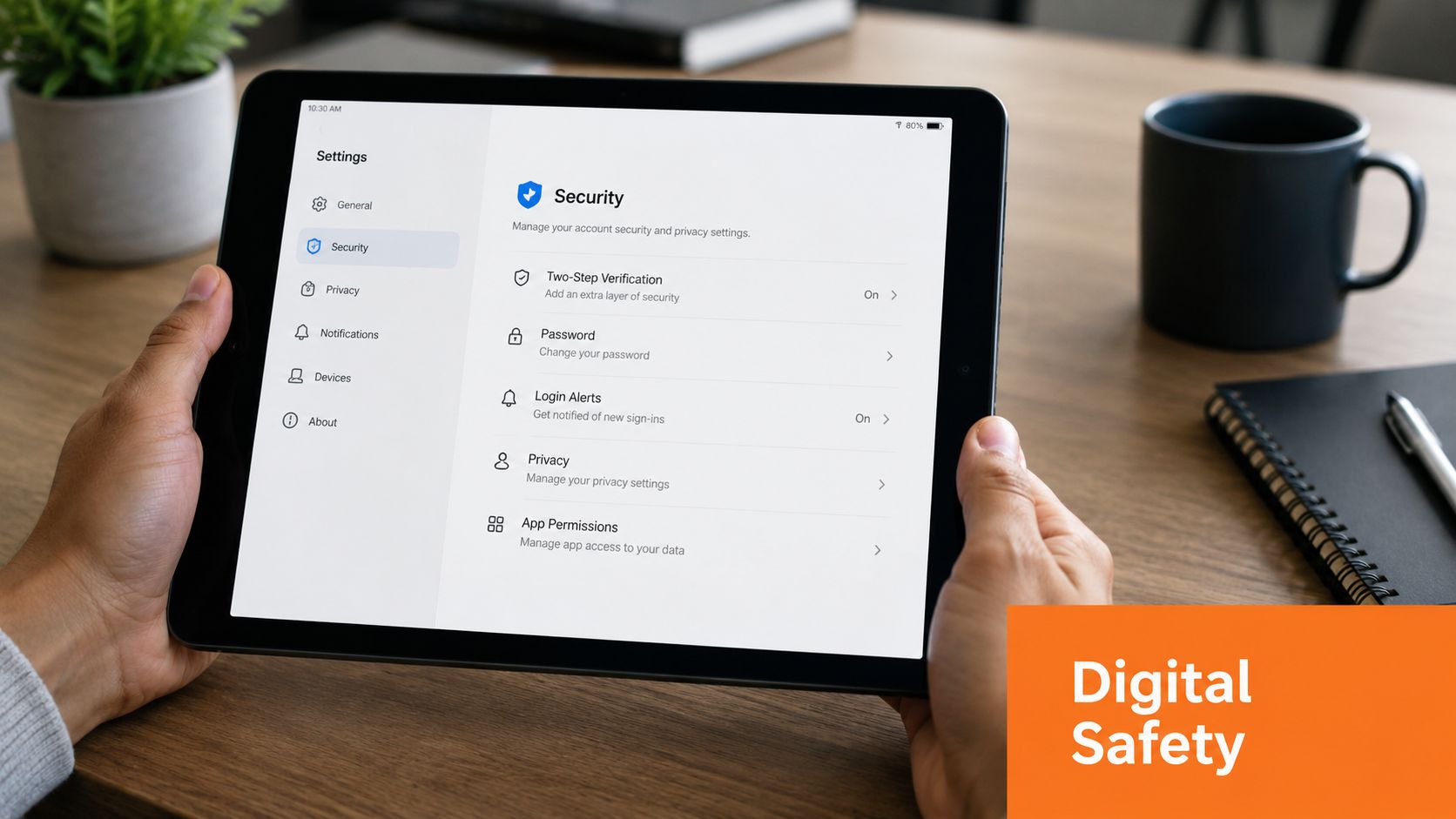
Consumer advice often encourages openness and flexibility. Care environments need the opposite. With seniors being a frequent target of fraud in Canada, tablet security should be built around limitation. The strongest approach may be a tablet that is intentionally restricted, using remote caregiver management and locked-down communication rather than an unrestricted app ecosystem, as discussed in this guidance on tablets for seniors and safety.
Build a digital safe space
The most reliable protection is a managed environment. That usually means Mobile Device Management, often called MDM, combined with facility policies.
A secure setup typically includes:
Approved apps only: Remove the app store from resident-facing profiles and whitelist only what the facility has reviewed.
Restricted web access: If browsing is needed, limit it to a small set of approved sites.
No in-app purchasing: Disable payment methods and purchase prompts.
Controlled communication: Keep contact lists short and verified.
Locked settings: Residents should not be able to alter core security, privacy, or accessibility controls by accident.
Match security to cognitive risk
Not every resident needs the same degree of lockdown. A retired engineer with intact cognition may use a tablet safely with modest safeguards. A resident with memory loss, impulsivity, scam vulnerability, or fluctuating capacity often needs a much narrower digital environment.
That's where many facilities go wrong. They deploy one default profile across the whole building. A safer model uses tiers. For example:
Independent profile: Selected residents can use communication, reading, and approved leisure apps.
Supported profile: Staff launch sessions and remain available for help.
Protected profile: One-tap functions only, no open browsing, trusted contacts only, and full remote management.
Clinical safeguard: The safer device is often the one that removes choices the resident cannot evaluate reliably.
Privacy is part of implementation
Security controls don't replace privacy governance. Staff need clear rules for shared devices, resident consent, session supervision, documentation, and sign-out procedures. If tablets are used for assessments, communication, or care coordination, privacy practices have to be explicit and trainable.
For teams reviewing how a digital platform handles privacy expectations, Orange Neurosciences' privacy policy is the kind of document administrators should expect to examine before adopting any clinical technology.
Strategic Setup and Onboarding for Residents and Staff
Most tablet programmes fail during setup, not selection. The hardware arrives, devices are turned on one by one, apps are installed manually, and staff are expected to “show residents how to use them” whenever time allows. That approach creates inconsistency from the first day.
The better approach is operational. Configure devices in batches, define resident profiles before rollout, and treat onboarding as a repeatable care process.
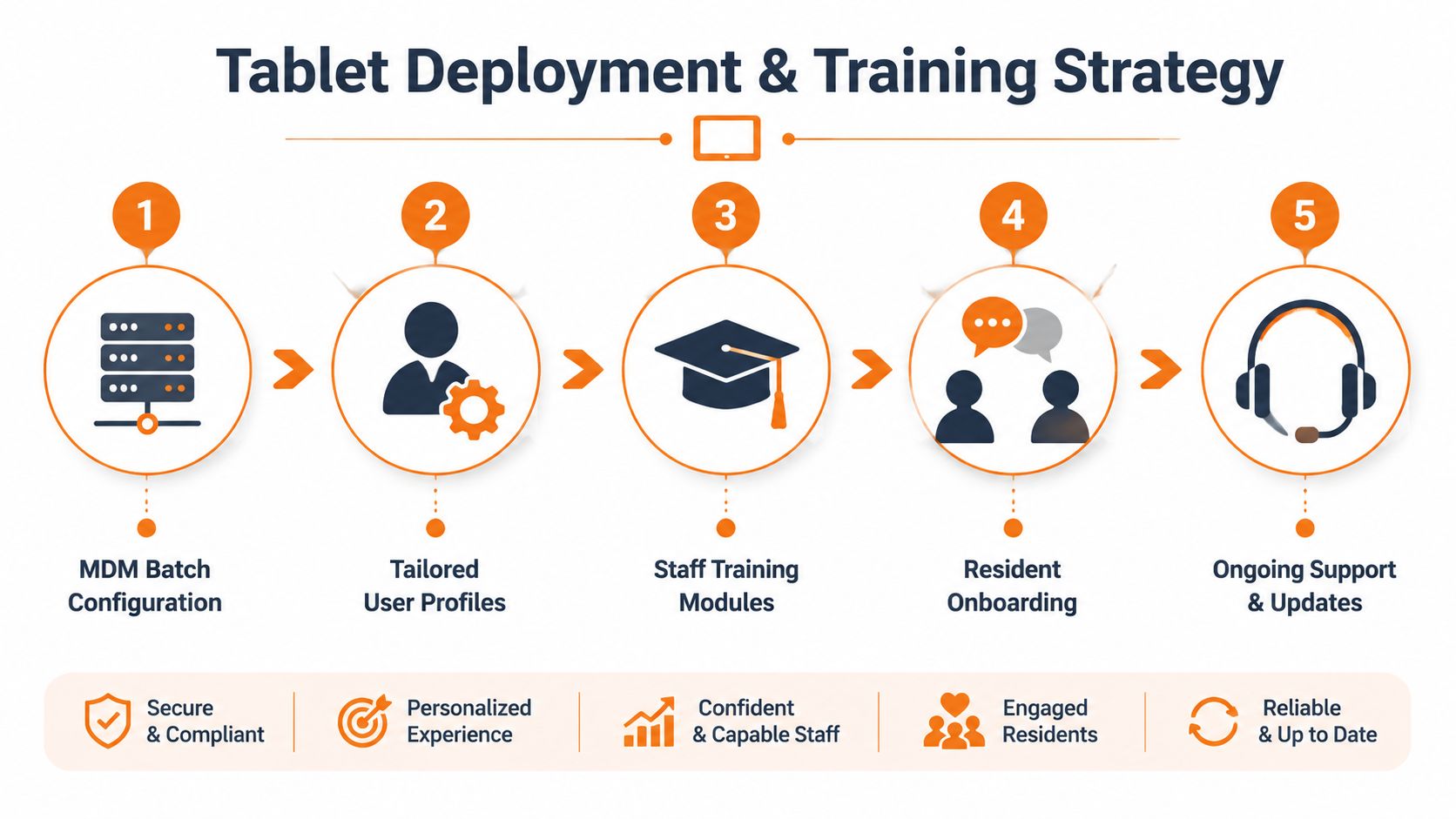
A Canadian usability study found that older adults who had never used a tablet could still learn and benefit when onboarding was low-friction and the interface was simple. The study's practical lesson is important for care settings: digital literacy barriers, not age itself, are often the main constraint, as described in this Canadian tablet usability study.
Set up devices before they reach the floor
Residents should never be the first people to discover a configuration problem. Before any device is issued, decide:
Which resident or staff group it belongs to.
Which apps and websites are approved.
Which accessibility settings are required.
Which restrictions apply.
How charging, cleaning, and support will be handled.
That sounds basic, but it prevents most of the friction staff complain about later.
Simplify the resident experience
A resident home screen should reflect tasks, not technology. If the person mainly needs family calls, music, and one cognitive activity, those should be the only obvious options. Remove duplicate apps, hide technical utilities, and use plain labels instead of brand-heavy clutter.
Good examples include:
“Call Daughter” instead of a generic video app icon
“Today's Activities” instead of a browser bookmark folder
“Brain Games” instead of a crowded app page
“Ask Staff for Help” as a visible support shortcut when appropriate
Bad examples are easy to spot. Multiple browsers, app update badges, news alerts, and folders full of system tools all increase confusion.
Start with one successful task. A resident who can complete one action confidently is more likely to try the second.
Train staff to teach, not just operate
Staff training shouldn't stop at logging in and launching apps. They need to know how to introduce the device, pace instruction, spot signs of overload, and recover from common problems without turning every issue into an IT ticket.
A practical training model covers three things:
Device handling: charging, cleaning, login, and secure storage
Resident support: cueing, repetition, prompting, and when to stop
Escalation rules: what staff can fix on the unit and what must go back to IT or programme leads
Short scripts help. “Tap this button once.” “Wait for the screen to change.” “You don't need to read everything on the page.” Those prompts are more effective than broad explanations.
Onboarding should be task-based
Don't try to teach the whole tablet in one sitting. Teach one action at a time, tied to a meaningful outcome.
A practical sequence might look like this:
Session one: access the tablet and start one approved activity
Session two: answer or place one family call
Session three: use one daily prompt or reminder
Session four: repeat the same tasks with less staff assistance
Residents learn faster when the interface stays stable. Frequent layout changes, app swaps, or policy changes can undo progress.
Integrating Tablets with Cognitive Care Workflows
A tablet becomes far more valuable when it serves as the front end for a cognitive care pathway. Without that pathway, staff rely heavily on anecdotes. A resident seems slower today. Another seems more distracted this week. Those observations still matter, but they are hard to compare over time and hard to translate into a consistent intervention plan.
From observation to measurable workflow
In a stronger model, the tablet is used first for structured assessment, then for targeted activities, then for review. That changes how teams make decisions.
A practical workflow looks like this:
Baseline assessment: Staff administer a standardised task set on the tablet.
Profile review: Clinicians or programme leads examine results by domain.
Targeted activities: The resident completes selected exercises matched to need.
Follow-up checks: Repeat sessions show whether the person is holding steady, improving, or struggling.
This isn't about replacing clinical judgement. It's about giving judgement a more reliable substrate.
The device and platform have to fit together
Not every digital tool belongs in a care home. Some require too much reading. Others create noise through game mechanics, ads, or unnecessary complexity. The most usable systems tend to share a few traits: large touch targets, straightforward instructions, repeatable tasks, and reporting that staff can interpret.
One example is Orange Neurosciences, which offers web and tablet-based cognitive assessment and therapy workflows that can be used in clinical, rehabilitation, and care settings. For administrators evaluating this category, the important question is whether the platform supports baseline measurement, ongoing task delivery, and review without adding extra administrative friction. A useful reference point is this guide to cognitive assessment tools.
Why this matters operationally
When tablet use is tied to measurable cognitive workflows, directors can make better programme decisions. Staff can identify which residents need more support, which activities are worth continuing, and which interventions are generating effort without useful signal.
That also improves conversations with families. Instead of saying, “We've been doing some brain games,” staff can describe what has been trialled, what the resident tolerated, and what trends the team is watching. Even when a tool is not diagnostic, it can still support clearer monitoring and more disciplined follow-up.
Procurement Maintenance and Scaling Your Program
A tablet programme should be procured like equipment, not like a seasonal activity purchase. Standardise models where possible. Mixed fleets create charging problems, accessory mismatches, and more support overhead. If budget pressure is real, certified refurbished units can be reasonable if the supplier, warranty, battery condition, and update support are clear before purchase.
Maintenance also needs a home. Tablets should have assigned charging locations, cleaning routines that fit infection-control practice, and a clear process for damaged cases, cracked screens, or login failures. If updates are handled centrally, staff won't lose time chasing prompts during resident sessions. If updates are not handled centrally, that problem will land on the floor team.
Start small and scale only after the workflow holds
Pilot with a defined group of residents and a narrow use case. For example, one memory care cluster, one rehab stream, or one social engagement programme. That lets you test:
Device readiness: are tablets charged, accessible, and consistently available?
Staff adoption: are sessions happening without constant troubleshooting?
Resident fit: do the profiles and restrictions match actual need?
Operational burden: is the programme reducing friction or creating more of it?
A pilot should test the workflow under normal staffing conditions, not under special project conditions.
Once the setup is stable, scaling becomes much easier. More devices won't fix a weak process. They only multiply it.
If your team is planning tablet computers for the elderly in a care home, rehab programme, or senior community, it's worth speaking with a partner that understands both the clinical workflow and the practical realities of deployment. Orange Neurosciences provides tablet-based cognitive assessment and therapy tools that can fit into structured care pathways. If you're evaluating options, contact their team through the website to discuss your setting or request more information by email.

Orange Neurosciences' Cognitive Skills Assessments (CSA) are intended as an aid for assessing the cognitive well-being of an individual. In a clinical setting, the CSA results (when interpreted by a qualified healthcare provider) may be used as an aid in determining whether further cognitive evaluation is needed. Orange Neurosciences' brain training programs are designed to promote and encourage overall cognitive health. Orange Neurosciences does not offer any medical diagnosis or treatment of any medical disease or condition. Orange Neurosciences products may also be used for research purposes for any range of cognition-related assessments. If used for research purposes, all use of the product must comply with the appropriate human subjects' procedures as they exist within the researcher's institution and will be the researcher's responsibility. All such human subject protections shall be under the provisions of all applicable sections of the Code of Federal Regulations.


© 2026 by Orange Neurosciences Corporation